> ## Documentation Index
> Fetch the complete documentation index at: https://docs-preview.modular.com/llms.txt
> Use this file to discover all available pages before exploring further.
# Image generation
> Generate and transform images using image generation models via the v1/responses endpoint
You can access image generation models and interact with
them through a REST API. This page explains how to use the
[`v1/responses`](/api-reference/inference/create-response) endpoint to generate images from
text prompts or transform existing images, with examples for each input type.
Before you start, check the [supported models](/models) page to see
which image generation models are available via shared endpoints (available
out of the box) versus dedicated endpoints (custom deployments), since not
every model or endpoint supports every modality.
## Call the v1/responses endpoint
The `v1/responses` endpoint provides a unified interface for
diverse AI tasks including image generation, with structured input and output
handling. It's built on [Open
Responses](https://huggingface.co/blog/open-responses), an open-source
initiative to create a standardized, provider-agnostic API specification that
works across different AI providers and model backends.
### Generate from a text prompt
For text-to-image generation, set `input` to a plain string describing the
image you want. The model returns the generated image as base64-encoded data in
`output[0].content[0].image_data`:
Pass a text string as the `input` field and read back the base64-encoded image
data:
```python theme={null}
response = client.responses.create(
model="black-forest-labs/FLUX.2-dev",
input="Your text prompt here",
extra_body={
"provider_options": {
"image": {"height": 1024, "width": 1024, "steps": 28}
}
}
)
image_data = response.output[0].content[0].image_data
```
Send the prompt as the `input` field in the request body:
```bash theme={null}
curl -X POST https://api.modular.com/v1/responses \
-H "Authorization: Bearer $MODULAR_API_KEY" \
-H "Content-Type: application/json" \
-d '{
"model": "black-forest-labs/FLUX.2-dev",
"input": "Your text prompt here",
"provider_options": {
"image": {"height": 1024, "width": 1024, "steps": 28}
}
}'
```
### Transform an existing image
For image-to-image workflows, set `input` to a structured message array
containing the source image URL and a text prompt describing the transformation.
The `type` field distinguishes image and text content within the same message:
Pass an `input_image` and an `input_text` block together in the `content` array:
```python theme={null}
response = client.responses.create(
model="black-forest-labs/FLUX.2-dev",
input=[
{
"role": "user",
"content": [
{
"type": "input_image",
"image_url": "https://example.com/input.png"
},
{
"type": "input_text",
"text": "Your transformation prompt"
}
]
}
],
extra_body={
"provider_options": {
"image": {"height": 1024, "width": 1024, "steps": 28}
}
}
)
image_data = response.output[0].content[0].image_data
```
Set `input` to an array with both `input_image` and `input_text` content blocks:
```bash theme={null}
curl -X POST https://api.modular.com/v1/responses \
-H "Authorization: Bearer $MODULAR_API_KEY" \
-H "Content-Type: application/json" \
-d '{
"model": "black-forest-labs/FLUX.2-dev",
"input": [
{
"role": "user",
"content": [
{
"type": "input_image",
"image_url": "https://example.com/input.png"
},
{
"type": "input_text",
"text": "Your transformation prompt"
}
]
}
],
"provider_options": {
"image": {"height": 1024, "width": 1024, "steps": 28}
}
}'
```
### Use a local image file
Local files must be base64-encoded and passed as a data URI in the `image_url`
field using the format `data:;base64,`.
Read the file, encode it to base64, and pass the result as a data URI in
`image_url`:
```python theme={null}
import base64
with open("/path/to/image.png", "rb") as f:
image_base64 = base64.b64encode(f.read()).decode("utf-8")
response = client.responses.create(
model="black-forest-labs/FLUX.2-dev",
input=[
{
"role": "user",
"content": [
{
"type": "input_image",
"image_url": f"data:image/png;base64,{image_base64}"
},
{
"type": "input_text",
"text": "Your transformation prompt"
}
]
}
],
extra_body={
"provider_options": {
"image": {"height": 1024, "width": 1024, "steps": 28}
}
}
)
image_data = response.output[0].content[0].image_data
```
Base64-encode the file and embed it as a data URI in the request JSON:
```bash theme={null}
IMAGE_DATA=$(base64 -w 0 /path/to/image.png)
cat < request.json
{
"model": "black-forest-labs/FLUX.2-dev",
"input": [{"role": "user", "content": [
{"type": "input_image", "image_url": "data:image/png;base64,$IMAGE_DATA"},
{"type": "input_text", "text": "Your transformation prompt"}
]}],
"provider_options": {"image": {"height": 1024, "width": 1024, "steps": 28}}
}
EOF
curl -X POST https://api.modular.com/v1/responses \
-H "Authorization: Bearer $MODULAR_API_KEY" \
-H "Content-Type: application/json" \
-d @request.json
```
### Configure generation parameters
The `provider_options` argument is an extension point in the Open Responses spec
that lets each API provider expose parameters beyond the standard request fields.
It's used here to surface image generation controls such as dimensions and
denoising steps.
The following parameters are available under `provider_options.image`:
| Parameter | Default | Description |
| ------------------ | ------- | ----------------------------------------------------- |
| `height` / `width` | 1024 | Output dimensions in pixels (must be multiples of 16) |
| `steps` | 28 | Number of denoising steps |
| `guidance_scale` | 3.5 | How closely the output follows the prompt |
| `negative_prompt` | `""` | Content to avoid in the output |
**Height and width**: You can generate images at different aspect ratios. Image
dimensions must be a multiple of 16 and are automatically scaled to a multiple
of 16 if an incompatible integer is provided.
**Steps**: `steps` has the greatest effect on generation time. Diffusion models
work by iteratively refining a noisy image. More steps produce higher-quality
results but take proportionally longer. You can experiment with `steps` when
considering the tradeoffs of speed and quality.
**Prompt adherence**: `guidance_scale` determines how literally the model
interprets your prompt. Higher values (7-10) produce results that closely match
the prompt. Lower values (1-3) allow more creative variation.
**Negative prompts**: Use `negative_prompt` to steer the model away from
unwanted content, for example `"blurry, low quality, distorted"`. It's best
practice to include any negative prompting in the `negative_prompt` argument and
not in the main `input_text` string.
If you encounter memory errors, try reducing your output image dimensions or the
number of denoising steps:
```json theme={null}
"provider_options": {"image": {"height": 512, "width": 512, "steps": 25}}
```
## Generate an image from text
Generate an image from a text description by sending a request to the
`v1/responses` endpoint. The `input` field is a text string describing the
desired image, and `provider_options` controls generation parameters. You can
send requests using either the OpenAI Python SDK or curl:
Send the prompt and write the decoded image to a file:
```python title="generate-image.py" theme={null}
import os
import base64
from openai import OpenAI
client = OpenAI(
base_url="https://api.modular.com/v1",
api_key=os.environ["MODULAR_API_KEY"],
)
response = client.responses.create(
model="black-forest-labs/FLUX.2-dev",
input="A serene mountain landscape at sunset",
extra_body={
"provider_options": {
"image": {"height": 512, "width": 512, "steps": 28}
}
}
)
image_data = response.output[0].content[0].image_data
with open("output-text-to-image.png", "wb") as f:
f.write(base64.b64decode(image_data))
```
Run the script to generate the image:
```bash theme={null}
python generate-image.py
```
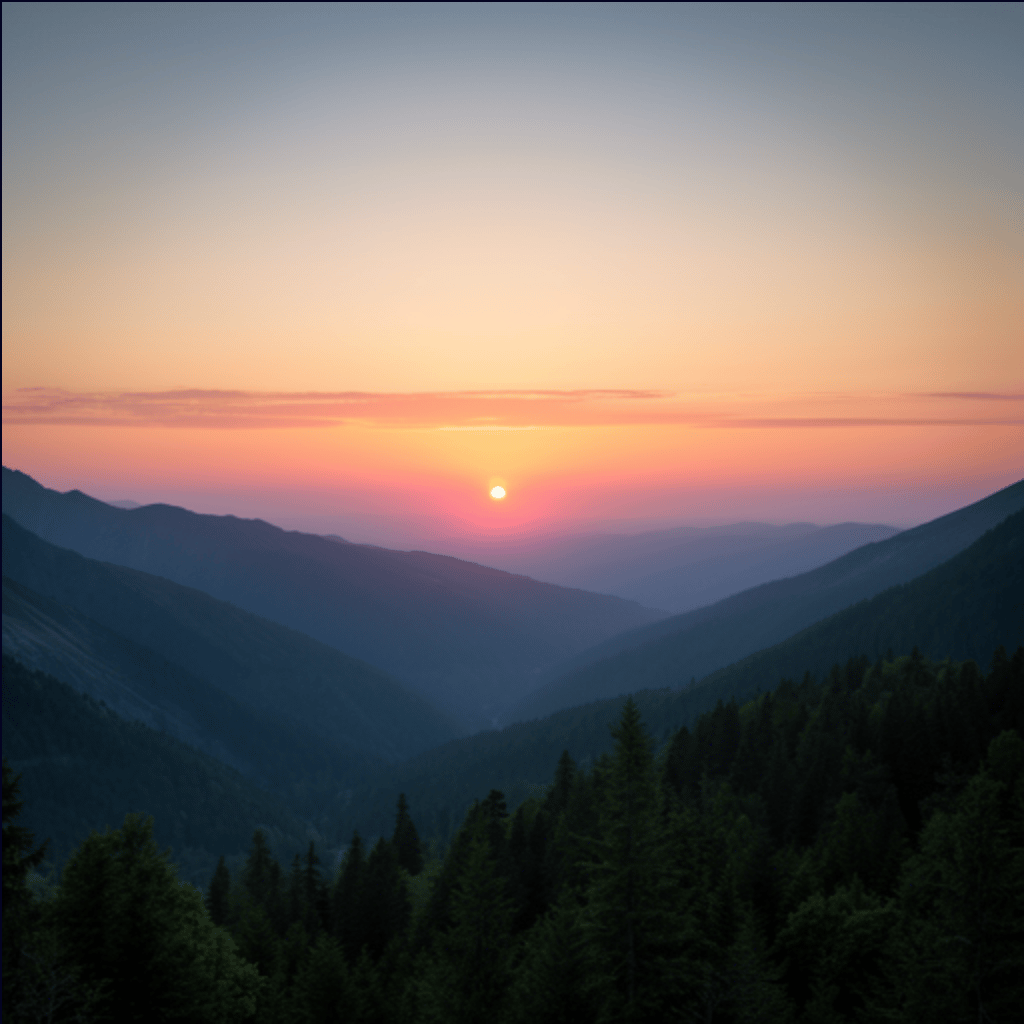
The model saves the generated image to `output-text-to-image.png` in your
current directory.
Send a request to the `v1/responses` endpoint and decode the base64-encoded
image data from the response:
```bash theme={null}
curl -X POST https://api.modular.com/v1/responses \
-H "Authorization: Bearer $MODULAR_API_KEY" \
-H "Content-Type: application/json" \
-d '{
"model": "black-forest-labs/FLUX.2-dev",
"input": "A serene mountain landscape at sunset",
"provider_options": {
"image": {"height": 512, "width": 512, "steps": 28}
}
}' | jq -r '.output[0].content[0].image_data' | base64 -d > output-text-to-image.png
```
This sends a text prompt to the model and decodes the base64-encoded image data
from the response into `output-text-to-image.png`.
Your output should look similar to the following:
 ## Use your generated image as input
You can then take the image generated in the previous step and make additional
customizations with the image-to-image workflow by providing both an image and a
text prompt:
Read and encode the output image from the previous step, then send it along
with a text prompt to the model:
```python title="generate-image-to-image.py" theme={null}
import os
import base64
from openai import OpenAI
client = OpenAI(
base_url="https://api.modular.com/v1",
api_key=os.environ["MODULAR_API_KEY"],
)
with open("output-text-to-image.png", "rb") as f:
image_base64 = base64.b64encode(f.read()).decode("utf-8")
response = client.responses.create(
model="black-forest-labs/FLUX.2-dev",
input=[
{
"role": "user",
"content": [
{
"type": "input_image",
"image_url": f"data:image/png;base64,{image_base64}"
},
{
"type": "input_text",
"text": "Transform this into a watercolor painting"
}
]
}
],
extra_body={
"provider_options": {
"image": {"height": 512, "width": 512, "steps": 28}
}
}
)
image_data = response.output[0].content[0].image_data
with open("output-image-to-image.png", "wb") as f:
f.write(base64.b64decode(image_data))
```
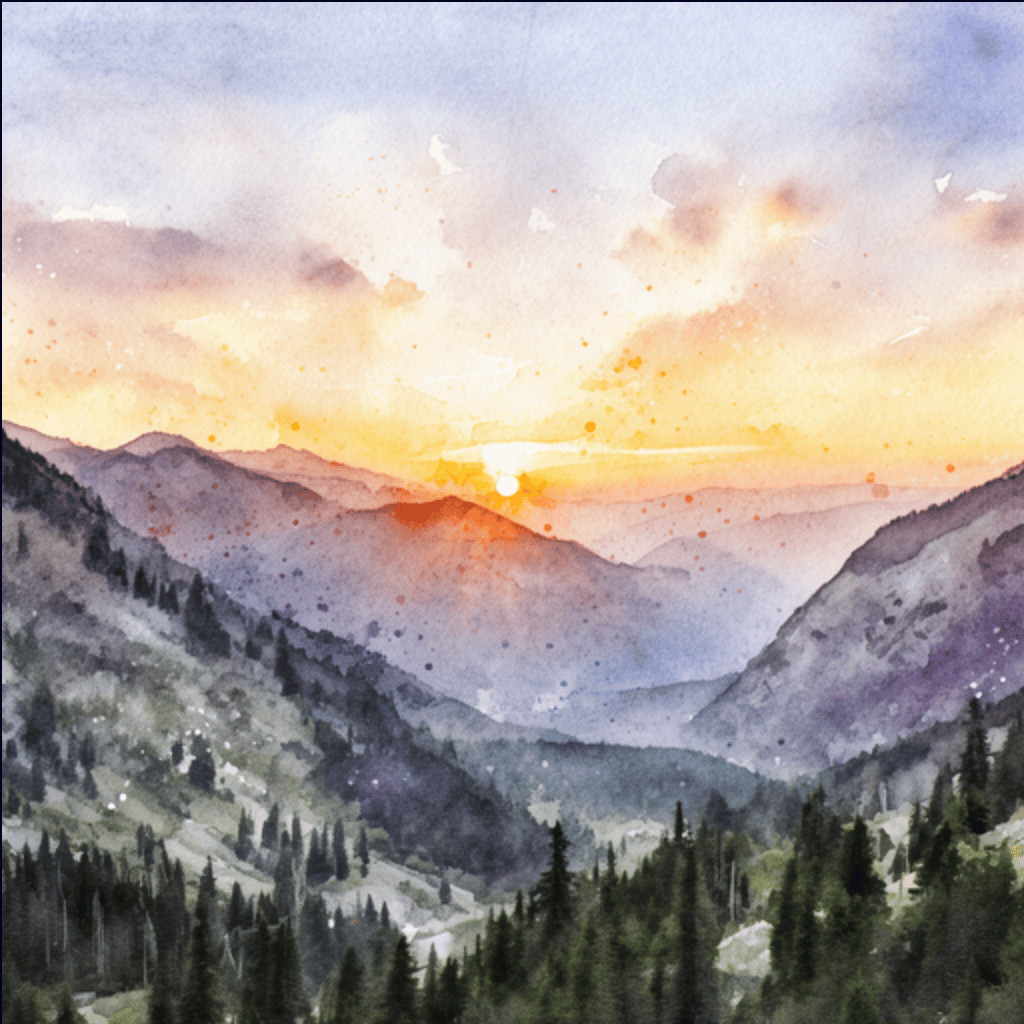
Run the script to generate the image:
```bash theme={null}
python generate-image-to-image.py
```
The model saves the transformed image to `output-image-to-image.png` in your
current directory.
First, encode the output image to base64 format:
```bash theme={null}
IMAGE_BASE64=$(base64 -w 0 output-text-to-image.png)
```
The base64 string is extremely large. If you include it directly in the curl
command, it will exceed the Linux argument size limit. Instead, store the
request payload in a JSON file:
```bash theme={null}
cat < request.json
{
"model": "black-forest-labs/FLUX.2-dev",
"input": [
{
"role": "user",
"content": [
{
"type": "input_image",
"image_url": "data:image/png;base64,$IMAGE_BASE64"
},
{
"type": "input_text",
"text": "Transform this into a watercolor painting"
}
]
}
],
"provider_options": {
"image": {"height": 512, "width": 512, "steps": 28}
}
}
EOF
```
Then, reference the JSON request payload when making your image-to-image
request:
```bash theme={null}
curl -X POST https://api.modular.com/v1/responses \
-H "Authorization: Bearer $MODULAR_API_KEY" \
-H "Content-Type: application/json" \
-d @request.json \
| jq -r '.output[0].content[0].image_data' \
| base64 -d > output-image-to-image.png
```
Your output should look similar to the following:
## Use your generated image as input
You can then take the image generated in the previous step and make additional
customizations with the image-to-image workflow by providing both an image and a
text prompt:
Read and encode the output image from the previous step, then send it along
with a text prompt to the model:
```python title="generate-image-to-image.py" theme={null}
import os
import base64
from openai import OpenAI
client = OpenAI(
base_url="https://api.modular.com/v1",
api_key=os.environ["MODULAR_API_KEY"],
)
with open("output-text-to-image.png", "rb") as f:
image_base64 = base64.b64encode(f.read()).decode("utf-8")
response = client.responses.create(
model="black-forest-labs/FLUX.2-dev",
input=[
{
"role": "user",
"content": [
{
"type": "input_image",
"image_url": f"data:image/png;base64,{image_base64}"
},
{
"type": "input_text",
"text": "Transform this into a watercolor painting"
}
]
}
],
extra_body={
"provider_options": {
"image": {"height": 512, "width": 512, "steps": 28}
}
}
)
image_data = response.output[0].content[0].image_data
with open("output-image-to-image.png", "wb") as f:
f.write(base64.b64decode(image_data))
```
Run the script to generate the image:
```bash theme={null}
python generate-image-to-image.py
```
The model saves the transformed image to `output-image-to-image.png` in your
current directory.
First, encode the output image to base64 format:
```bash theme={null}
IMAGE_BASE64=$(base64 -w 0 output-text-to-image.png)
```
The base64 string is extremely large. If you include it directly in the curl
command, it will exceed the Linux argument size limit. Instead, store the
request payload in a JSON file:
```bash theme={null}
cat < request.json
{
"model": "black-forest-labs/FLUX.2-dev",
"input": [
{
"role": "user",
"content": [
{
"type": "input_image",
"image_url": "data:image/png;base64,$IMAGE_BASE64"
},
{
"type": "input_text",
"text": "Transform this into a watercolor painting"
}
]
}
],
"provider_options": {
"image": {"height": 512, "width": 512, "steps": 28}
}
}
EOF
```
Then, reference the JSON request payload when making your image-to-image
request:
```bash theme={null}
curl -X POST https://api.modular.com/v1/responses \
-H "Authorization: Bearer $MODULAR_API_KEY" \
-H "Content-Type: application/json" \
-d @request.json \
| jq -r '.output[0].content[0].image_data' \
| base64 -d > output-image-to-image.png
```
Your output should look similar to the following: